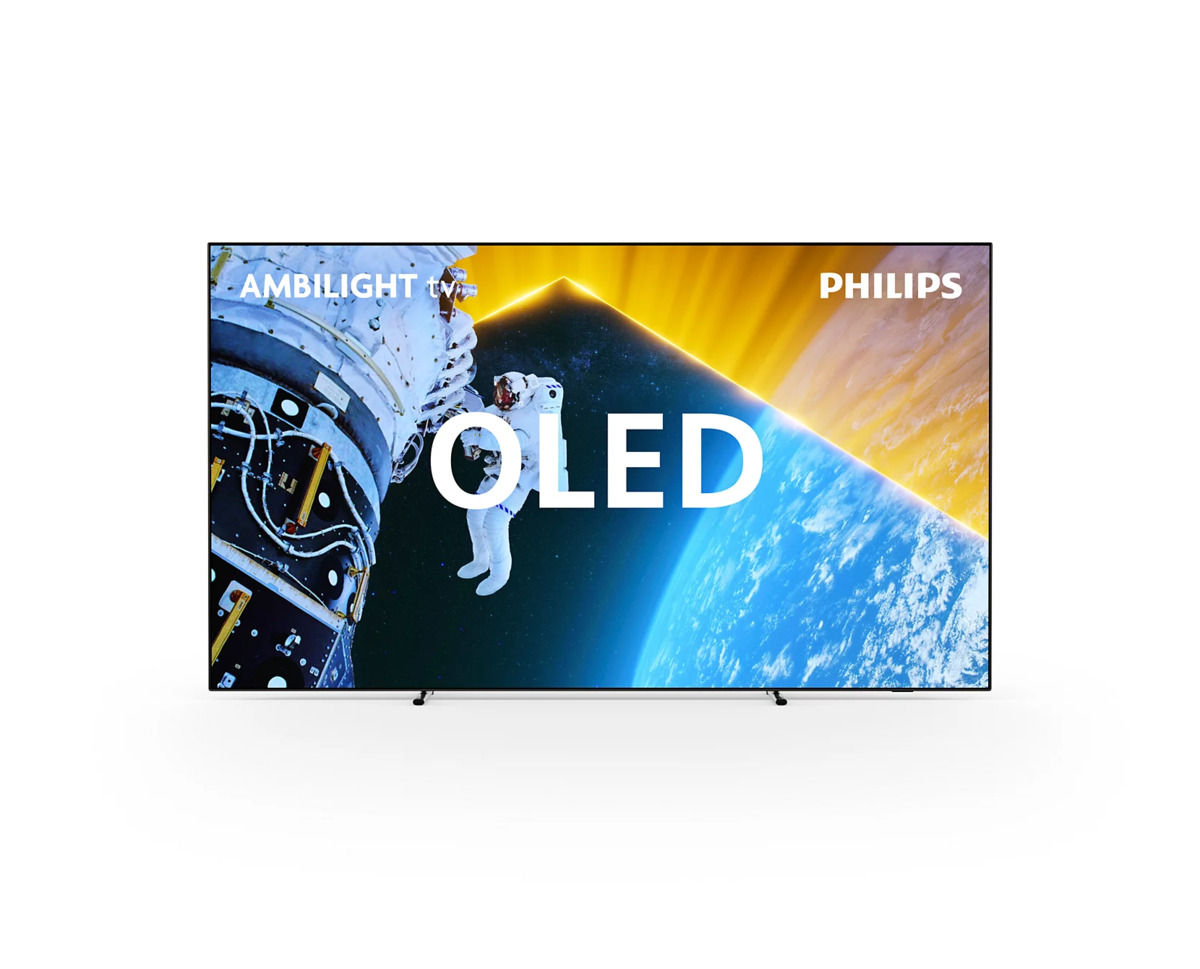
The goal: a Philips Ambilight TV that only shows the picture and lights the wall. Apple TV does the apps, the TV's own operating system does nothing, and nothing about what I watch leaves the house.
It works because Ambilight analyses the picture on the panel, whatever the source. It needs no app, no account and no network, so it lights up for an Apple TV on HDMI exactly as for the TV's own apps.
I started looking into it after a thread from security researcher log4j. He kept seeing oddly targeted ads on his 2025 Samsung TV, found a zero-day to get a root shell, and announced a "PRIVACY HORROR" in the firmware.

What a Philips Google TV sends home
Philips isn't Samsung, but its Google TV sets aren't quiet either. CleanYourTV's audit of a Philips 55OLED708 (Google TV 12, 2023) lists what runs out of the box:
| Package | What it does |
|---|---|
tv.samba.ssm |
Samba TV ACR: identifies what is on screen, reports through Firebase and Mixpanel |
org.droidtv.candeebug |
TP Vision's "DAC" analytics uploader |
org.droidtv.gel |
"GEL" metrics collector, inside the same process |
org.droidtv.tv.frameworklogger |
Sends reboot reasons and firmware-install records to the Philips logger |
org.droidtv.oemtabprovider |
The "Philips" promo tab on the Google TV home screen |
com.google.android.partnersetup |
Partner referrer and attribution |
ACR (automatic content recognition) is the part that matters. Samba TV fingerprints the picture, including what comes in over HDMI, and sells the viewing data for ad targeting. On an Apple TV setup it watches the Apple TV.
3 levels, from simplest to most work
| Level | What leaves the house | Still works | You lose |
|---|---|---|---|
| 1. Offline | Nothing | Picture, Ambilight, HDMI, eARC, HDMI-CEC | Ambilight + Hue, AirPlay to the TV, updates |
| 2. LAN only | Nothing | All of level 1, plus Ambilight + Hue and AirPlay | Firmware updates, the TV's own apps |
| 3. Online, debloated | Google and update traffic only | Everything, with a clean home screen | Time: about 15 minutes, redone after updates |
For an Apple TV setup, level 1 already gives the dumb display. Level 2 is level 1 for a house with Hue lights. Level 3 is for a TV that must stay online.
Level 1: keep it offline
- Factory-reset the TV, then in the Google TV setup choose basic TV: no Google account, no apps, HDMI inputs and live TV only.
- Skip the network. No Wi-Fi password, no Ethernet cable. On a TV that's already connected: Settings, Network, forget the network and switch Wi-Fi off.
- Connect the Apple TV by HDMI. Any HDMI port carries 4K HDR at 60 Hz. Keep the eARC port for a soundbar or receiver.
- Turn on HDMI-CEC (Philips calls it EasyLink) on the TV, and Control TVs and Receivers on the Apple TV. The Apple TV then wakes the TV, switches the input and sets the volume, so the Philips menus never show.
- Set the HDMI port to full bandwidth: Philips' HDMI Ultra HD setting on Optimal, or 4K HDR and Dolby Vision stay off on that port.
- On the Apple TV, turn on Match Content (dynamic range and frame rate), so films play in their own format instead of everything in Dolby Vision.
- Set Ambilight to follow video.
Without a network there is no ACR, no telemetry, no ads and no update that turns them back on.
Level 2: LAN only, for Hue
Ambilight + Hue (the TV drives Hue lamps in the room) needs the TV and the Hue Bridge on the same network. AirPlay from an iPhone to the TV is local too. Both work without the internet.
So connect the TV to the home network and block its internet access at the router: a firewall or traffic rule for the TV's address, LAN allowed, internet denied. ACR and telemetry fail silently, the local features keep working.
DNS blocking (Pi-hole, AdGuard Home, NextDNS) helps but leaks: a hard-coded DNS server or an IP address gets past it. A router rule doesn't.
Level 3: online, with the privacy menus and CleanYourTV
First, the menus
Menu paths change by model year and firmware. Use the Settings search where there is one.
- Samba TV: decline it during setup. Later, switch off Samba Interactive TV or the viewing-data option.
- Ads: Settings, Privacy, Ads: opt out of ads personalisation and delete the advertising ID.
- Usage and diagnostics, location: off.
- Recommendations and Philips' terms for personalised content: decline.
The menus switch features off. The packages stay installed, and an update can switch them back on.
Then CleanYourTV
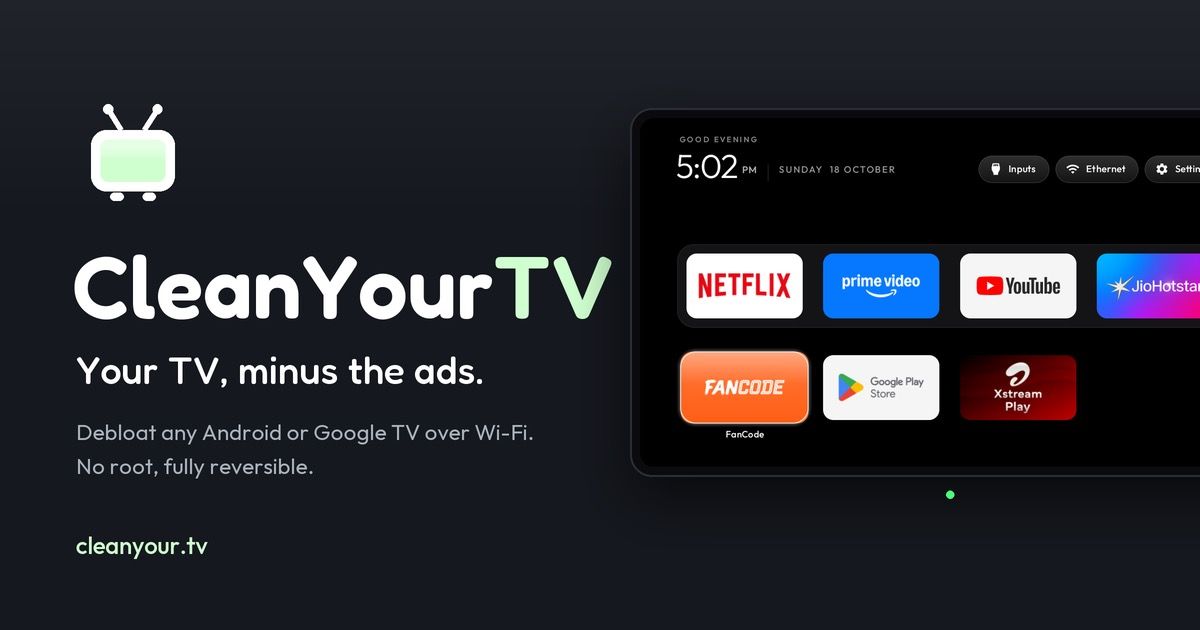
CleanYourTV is an open-source project (GitHub, about 34,600 stars) that cleans an Android or Google TV over the network, through ADB, the Android debug bridge:
- It disables, never uninstalls. Telemetry, ad services, promo rows and preloaded apps get
pm disable-user. A restore script undoes every step in 1 line. - It installs a small launcher that looks like the Apple TV home screen: a black background, a dock of 4 apps, and an Inputs button that lists the HDMI ports by the names you gave them.
- A coding agent does the work. You clone the repo, paste its
PROMPT.mdinto Claude Code, Codex or Gemini CLI with your TV model, and the agent finds your TV's packages, asks before it touches anything you might use, applies the list in small batches and checks each step with a screenshot. About 15 minutes. - Or from a phone: the community Clean Your TV app for Android does it without a computer.
- 307 TV models from 87 brands are documented, 17 of them Philips, from Android TV 8 to Google TV 14.
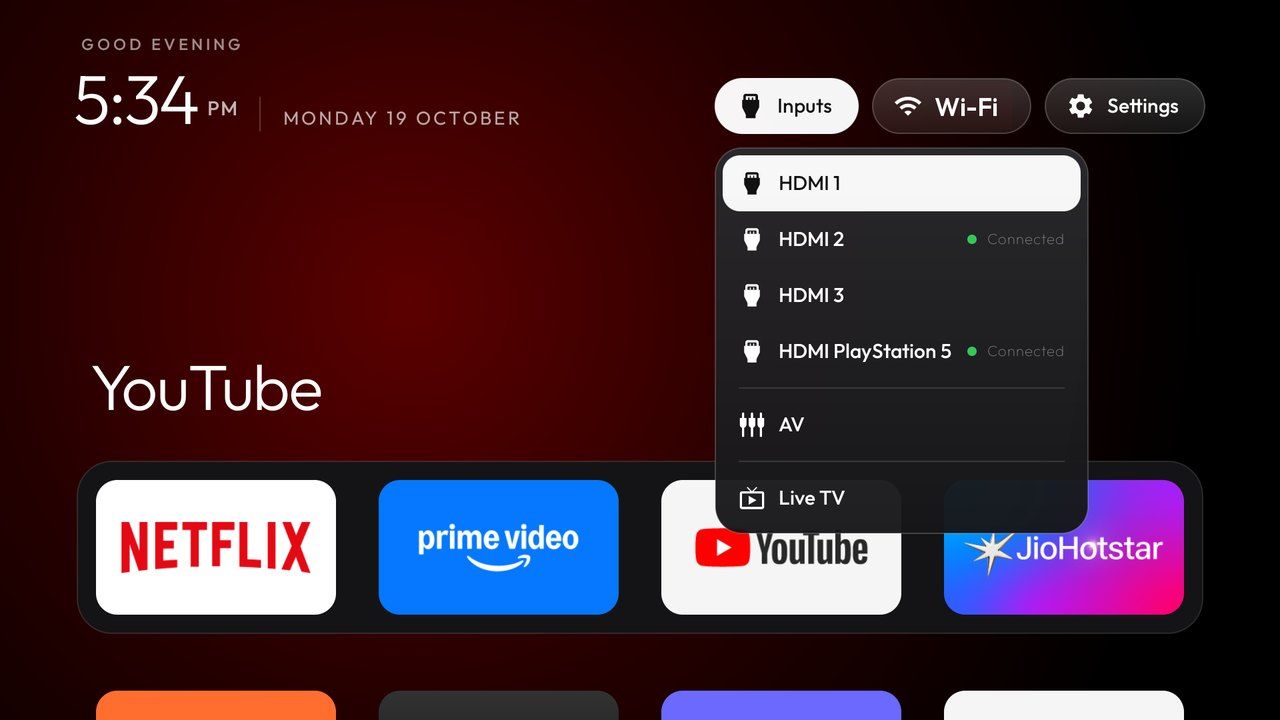
On the TV, before you start:
- Settings, Device Preferences, About: press OK on Build 7 times.
- Back, then Developer options: switch on USB debugging, and network debugging if the TV shows it.
- Keep the TV and the computer on the same Wi-Fi, and accept the "Allow USB debugging?" prompt on the TV.
What the Philips Google TV list teaches
The 55OLED708 list is the closest documented match for a 2023-2024 Philips Google TV such as my 77OLED809. Its notes are worth reading before you disable anything:
- Keep the HDMI service. On these sets
com.mediatek.tishandles every HDMI input, under the odd label "TIF Test". Disable it and the Apple TV is gone. - Keep Ambilight, firmware updates, AirPlay and the on-screen keyboard. The list keeps them on purpose. Keep Google Play Services if any TV app still needs it.
- Re-join Wi-Fi first. The Google TV setup wizard owns the network joined during first setup. Forget it and join again in Settings before the wizard is disabled, or the TV drops off Wi-Fi.
- 2 remote buttons break. The gear and Apps buttons are hard-wired to the stock launcher. The project's launcher remaps them by scancode.
- Reboots: on the 55OLED708 nothing re-enabled itself. On 2 older Philips Android TVs, Play-Fi and Chromecast came back. Check
adb shell pm list packages -dafter each update.
Caveats
- Offline means no firmware updates, so no security fixes and no Dolby Vision or HDMI bug fixes. The middle way: connect once or twice a year, update, check the privacy settings again, disconnect.
- Updates can re-enable what you switched off, in the menus and in ADB. Level 1 and 2 avoid this, because no update arrives.
- Titan OS models (Philips' cheaper sets, such as the OLED759) don't run Android, so CleanYourTV doesn't apply. Level 1 and 2 work the same.
- Ambilight, picture processing, HDMI switching and the remote aren't affected by any of the 3 levels.
Verdict
For a Philips Ambilight TV behind an Apple TV, the TV's operating system has no job left. Keep it offline, or on the LAN only if Hue matters, and it becomes what I want: a very good OLED panel with lights on the back. CleanYourTV is the answer for a TV that has to stay online, and the best-documented tool for Philips sets.
My setup: see Home Cinema.
Further Reading

- Use basic TV on a Google TV device, Google TV Help
- Samba TV, the ACR company preinstalled on Philips Google TVs