A thread by @Jasoncoderx claiming "you are only using 10% of your AirPods Pro" did the rounds on X. The six settings it lists are real, but two of them are not AirPods features at all, and one path is now superseded on AirPods Pro 2 and 3. Here is the verified version, with the iOS 26 additions the thread missed.

Quick reference
| Setting | Path (iOS 26) |
|---|---|
| Hearing Test | Health > Browse > Hearing > Hearing Test |
| Headphone Accommodations | Settings > Accessibility > Audio & Visual > Headphone Accommodations |
| Personalized Spatial Audio | Settings > [Your AirPods] > Personalized Spatial Audio |
| Conversation Boost | Headphone Accommodations > Transparency Mode > Conversation Boost |
| Background Sounds | Settings > Accessibility > Audio & Visual > Background Sounds |
| Live Listen | Control Center > hearing icon > your AirPods > Live Listen |
| Press Speed | Settings > Accessibility > AirPods > Press Speed |
| Ear Tip Fit Test | Settings > [Your AirPods] > Ear Tip Fit Test |
| Stop auto-switching | Settings > [Your AirPods] > Connect to This iPhone |
Since iOS 17, connected AirPods appear as their own row at the very top of Settings. That is the fastest way in, and it is where most of the AirPods-specific toggles live now.
The six from the thread
1. Headphone Accommodations
Boosts soft sounds and adjusts brightness across frequency bands. You can either run the built-in tuning test or import an audiogram from a real hearing test. It applies to any Apple or Beats headphones, not just AirPods.
Important on AirPods Pro 2 and 3: the Hearing Test moved into the Health app and the Hearing Assistance profile it produces overrides Headphone Accommodations entirely. If you own Pro 2 or Pro 3, take the Hearing Test and skip the older Custom Audio Setup. Running both is pointless.
2. Personalized Spatial Audio
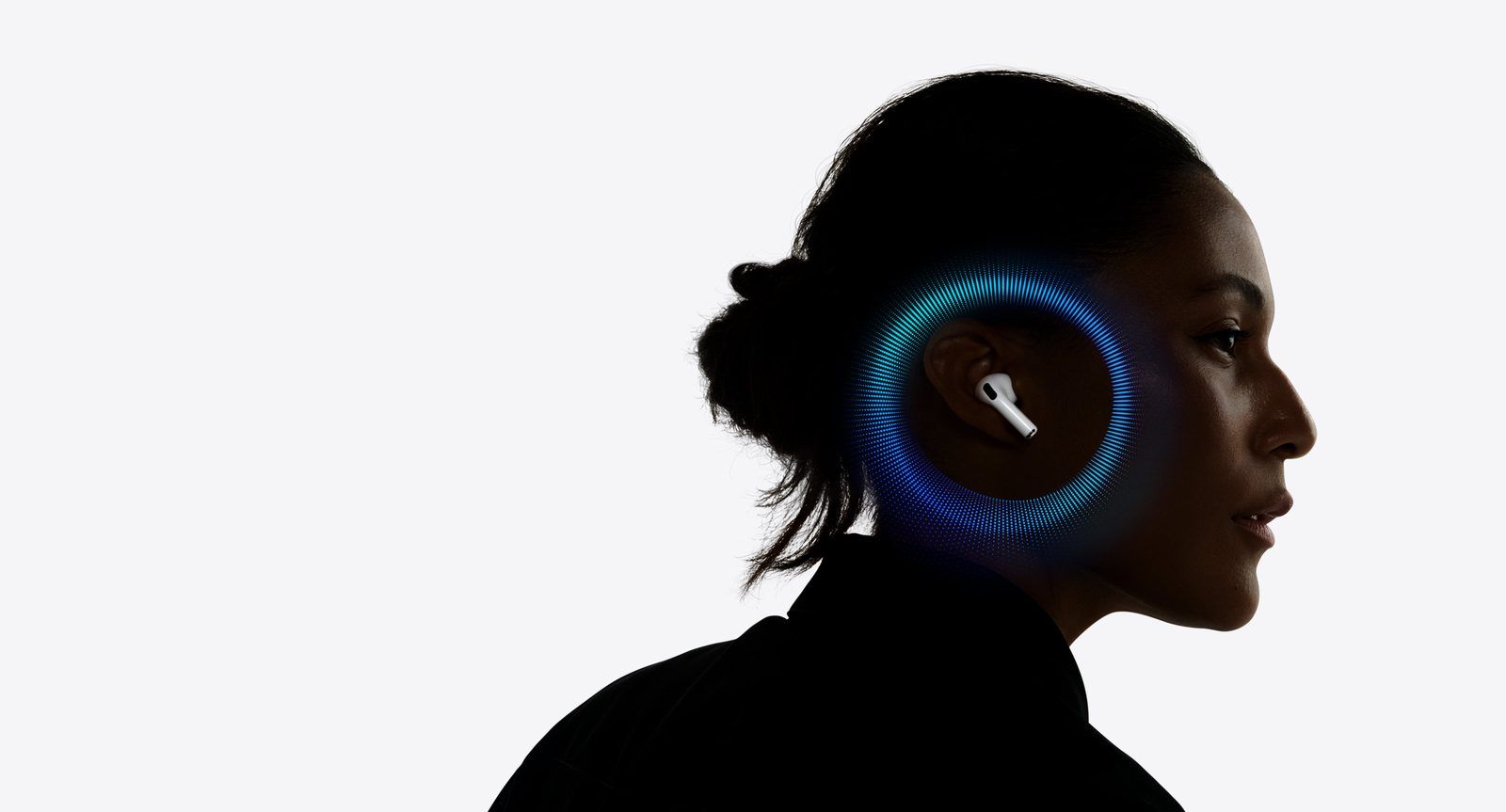
Uses the TrueDepth camera to scan your head and ear shape, then builds a head-related transfer function specific to you. The generic profile is an average of many ears. Yours is not average, and the difference in front-stage placement is obvious once you A/B it.
Path: Settings > [Your AirPods] > Personalized Spatial Audio. Takes about a minute, needs an iPhone with Face ID.
3. Conversation Boost
Beamforms the microphones toward whoever is directly in front of you and pushes their voice above the room. Built for restaurants and noisy offices. It lives under Transparency Mode inside Headphone Accommodations, so it only works while Transparency is active.
On Pro 2 and 3 with Hearing Assistance enabled, the hearing aid amplification does this job better and Conversation Boost becomes redundant.
4. Background Sounds
Rain, ocean, stream, and three noise colours, mixed under whatever else is playing. Genuinely useful for focus, and it replaces a paid app.
This is not an AirPods feature. It is a system-wide iOS feature that plays through any output including the phone speaker. The thread frames it as a hidden AirPods trick. It is not.
Path: Settings > Accessibility > Audio & Visual > Background Sounds. Add the tile to Control Center so you can start it in one tap.
5. Live Listen
Turns the iPhone into a remote microphone that streams to your AirPods. Designed for hard-of-hearing users in lecture halls, and it works well for that. Range is Bluetooth range, so roughly 10 to 15 metres with walls in the way.
Path: Control Center > hearing icon > tap your AirPods > Live Listen. Add the Hearing control first via Settings > Control Center.
Worth saying plainly: leaving a phone in a room to listen to people who do not know it is there is a legal problem in Germany. Recording or intercepting private speech without consent falls under §201 StGB.
6. Press Speed and Press and Hold Duration
The stem force sensor defaults to a fast double-press window. If you keep triggering a pause when you are just adjusting the fit, slow it down.
Path: Settings > Accessibility > AirPods > Press Speed (Default, Slow, Slowest). The same screen has Press and Hold Duration, Noise Cancellation with One AirPod, and Volume Swipe Speed for the Pro 2 and 3 stem swipe.
What the thread missed
Ear Tip Fit Test
The single highest-impact setting on the list and it is not in the thread. A poor seal kills both bass and ANC. Run Settings > [Your AirPods] > Ear Tip Fit Test after every tip change. Most people wearing the medium tips should be on large.
iOS 26 additions
| Feature | What it does |
|---|---|
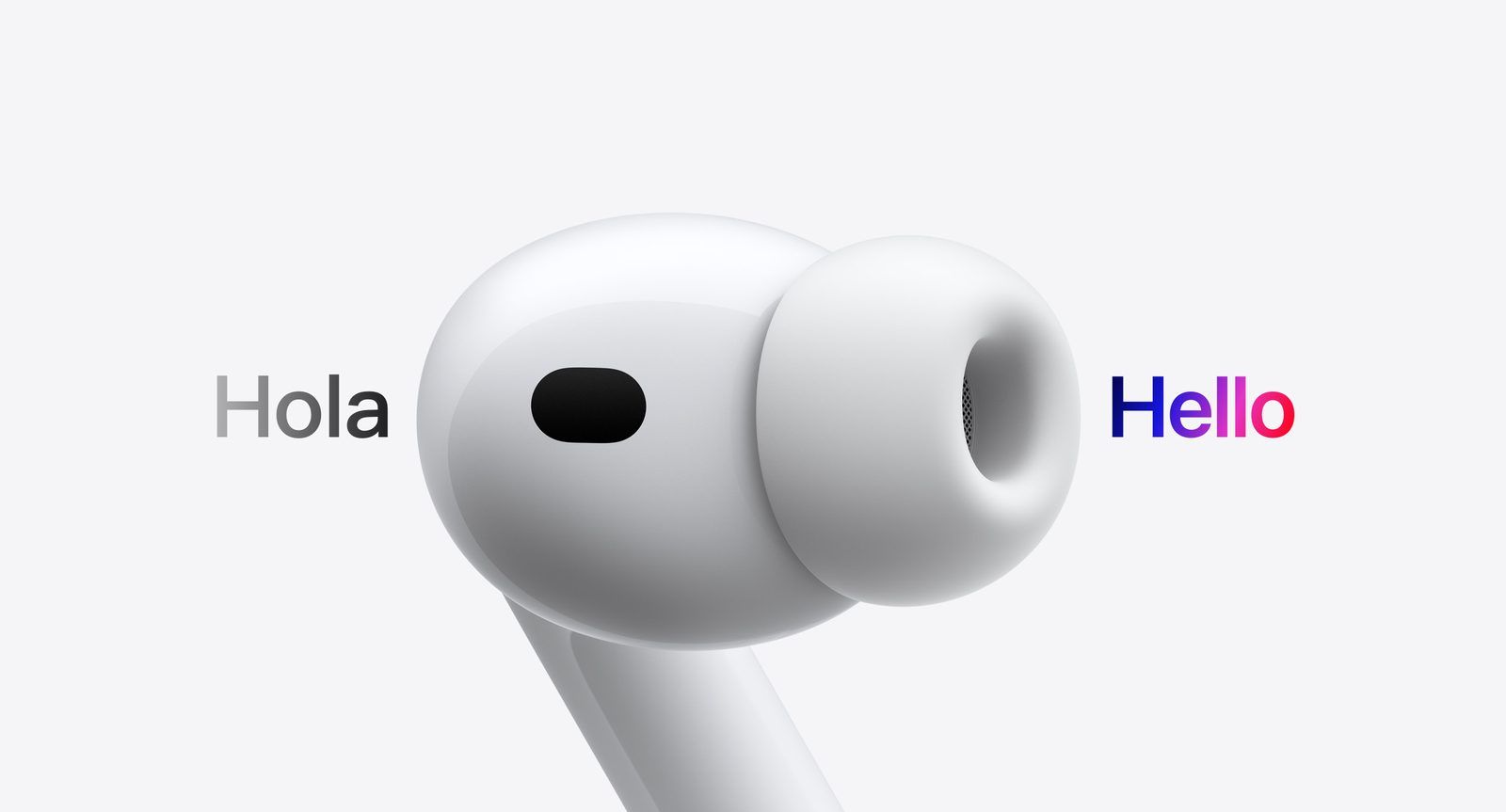
| Live Translation | Real-time spoken translation in your ear. Needs an Apple Intelligence iPhone (15 Pro or newer). Reached the EU with iOS 26.2 in December 2025 after a DMA delay. |
| Camera remote | Press and hold either stem to fire the shutter or start a video in the Camera app. Works in third-party camera apps too. |
| Studio-quality recording | The AirPods mic upgraded for voice capture, with Voice Isolation stripping the room. Good enough for a usable interview or voice memo. |
| Pause Media When Falling Asleep | Detects sleep and stops the podcast so you do not wake up 40 minutes into the next episode. |
| Charge reminders | Battery alerts before you leave, instead of a dead left bud at the airport. |
Stop the auto-switching
The most irritating AirPods behaviour, and it has a switch. Settings > [Your AirPods] > Connect to This iPhone > When Last Connected to This iPhone stops the buds from hijacking themselves to the iPad mid-call.
Headphone Safety
Settings > Sounds & Haptics > Headphone Safety caps output and logs exposure against WHO limits. The seven-day audio level chart in Health > Hearing is more sobering than expected.
Hardware notes
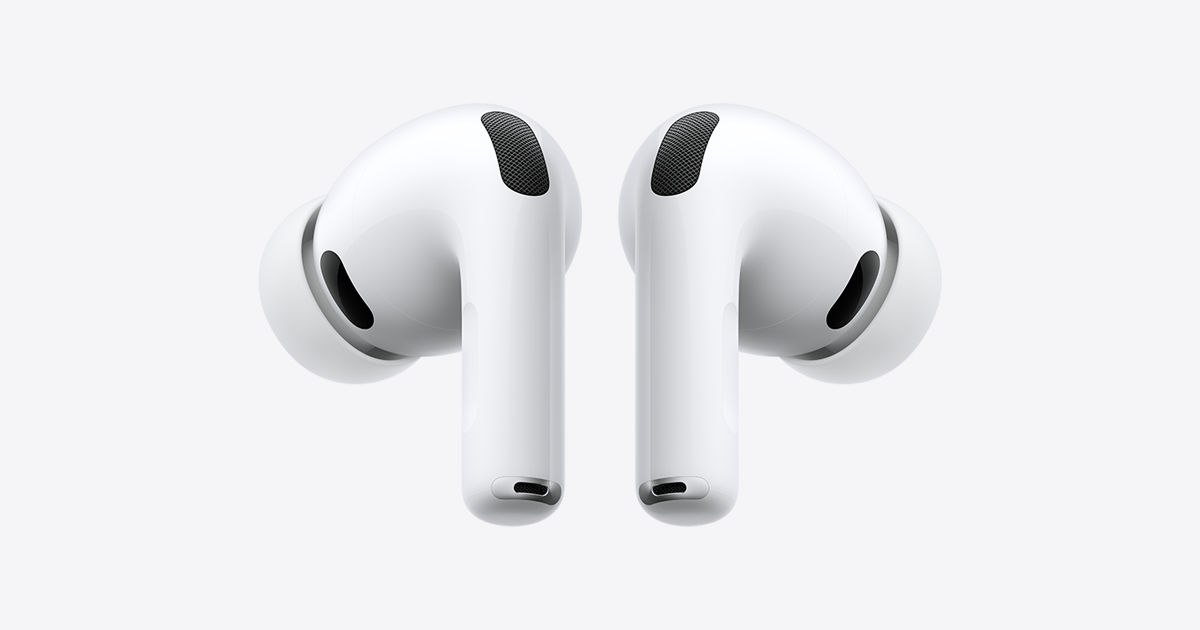
AirPods Pro 3 shipped in September 2025 with heart rate sensing through the ear, an IP57 rating, and up to 8 hours on ANC. The heart rate data feeds the Fitness app across 50 activity types, which makes them a usable workout sensor if you do not wear a watch while training.
The Hearing Test and Hearing Aid features are regulated medical features and roll out country by country. Check Apple's availability page before assuming they work in yours.

Verdict
Four of the six in the thread are worth ten minutes of setup: the Hearing Test, Personalized Spatial Audio, Ear Tip Fit Test (not in the thread), and Press Speed. Background Sounds is good but has nothing to do with AirPods. Live Listen is a niche accessibility tool dressed up as a spy trick.
See also: Airpods Max
Further reading