Omarchy is an opinionated Linux distribution built on Arch and Hyprland, made by David Heinemeier Hansson, incubated at 37signals and now run by its own foundation. It is not a desktop you configure. It is a set of decisions already made for you: tiling windows, no dock, no desktop icons, one menu on Super + Space, and everything else on a hotkey. The bet is that accepting someone else's taste gets you a working machine in five minutes instead of five weekends.
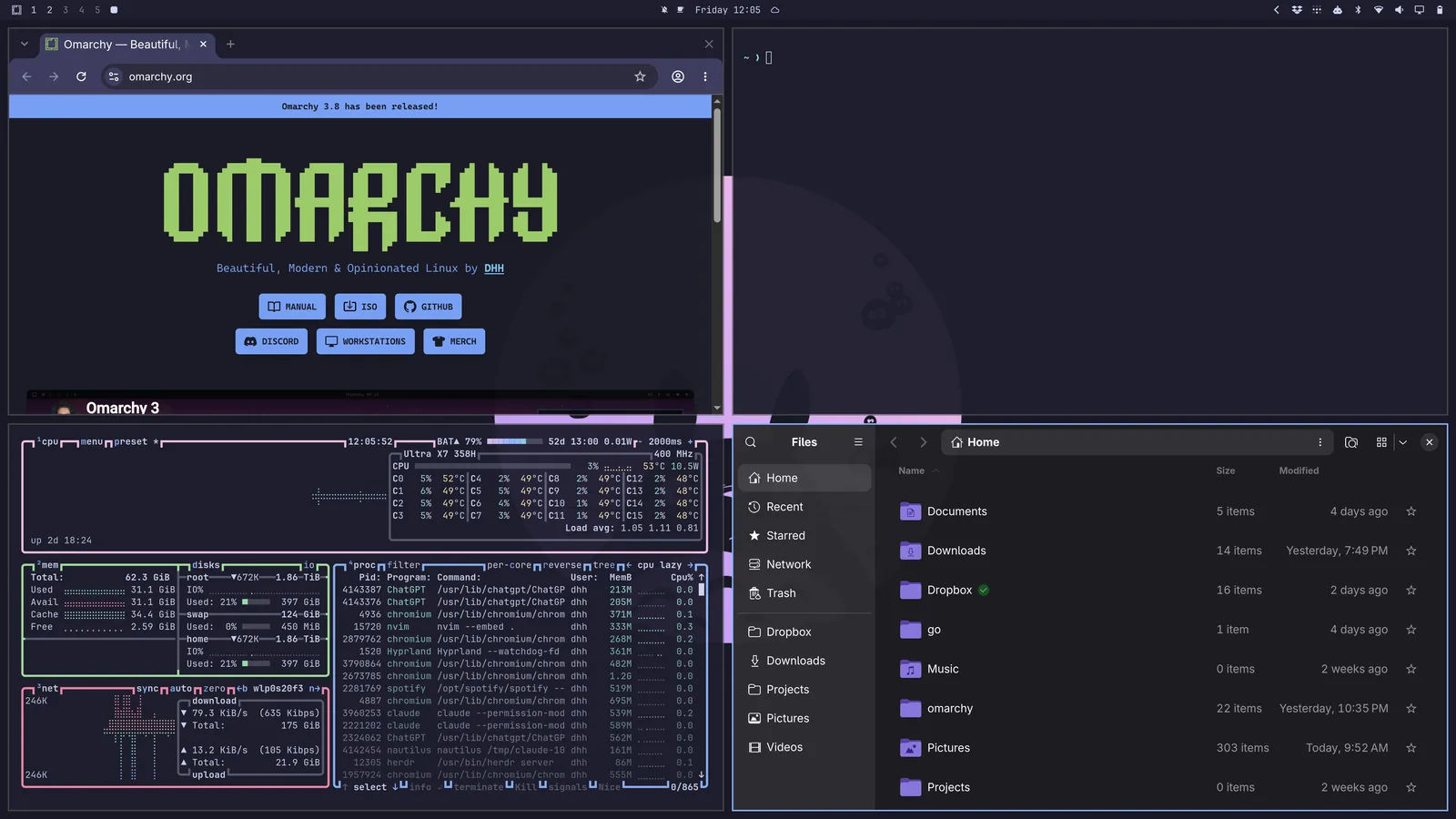
| Made by | David Heinemeier Hansson, now stewarded by the Omacom Foundation |
| Base | Arch Linux |
| Compositor | Hyprland, a Wayland tiling compositor |
| Licence | MIT, free |
| Repository | omacom/omarchy, 34,312 stars, default branch quattro |
| Current version | v4.0.1 ISO, 25th August 2026 |
| Architecture | x86_64 only |
| Install | ISO to USB, full-disk encryption by default |
The keyboard shortcuts
This is the part that decides whether the switch sticks. Super is the Command key on Mac hardware, so the anchor sits where your thumb already is. One binding to memorise: Super + K lists every other one.
Windows and focus
| Hotkey | Function |
|---|---|
Super + Arrow |
Move focus to the window in that direction |
Super + Shift + Arrow |
Swap the window with the one in that direction |
Alt + Tab |
Cycle windows on the active workspace |
Alt + Shift + Tab |
Cycle backwards |
Ctrl + Alt + Tab |
Cycle focus between monitors |
Super + W |
Close window, and the app actually quits |
Ctrl + Alt + Del |
Close all windows |
Super + Left Mouse |
Drag a window |
Super + Right Mouse |
Resize a window |
Workspaces
| Hotkey | Function |
|---|---|
Super + 1/2/3/4 |
Jump straight to a workspace |
Super + Tab |
Next workspace |
Super + Shift + Tab |
Previous workspace |
Super + Ctrl + Tab |
Back to the last workspace you were on |
Super + Shift + 1/2/3/4 |
Send the window to a workspace |
Super + Shift + Alt + 1/2/3/4 |
Send it without following |
Super + Scroll Wheel |
Scroll through workspaces |
Super + S |
Scratchpad overlay |
Super + Alt + S |
Send window to the scratchpad |
Layout and sizing
| Hotkey | Function |
|---|---|
Super + T |
Toggle the window between tiling and floating |
Super + F |
Full screen |
Super + Alt + F |
Full width |
Super + Ctrl + F |
Full screen inside the window |
Super + L |
Switch between dwindle and scrolling layout |
Super + J |
Toggle horizontal and vertical split |
Super + O |
Pop the window into sticky floating |
Super + Minus / Super + Equal |
Expand or shrink the window |
Super + Alt + Minus/Equal |
Same, smaller steps |
Super + Ctrl + Minus/Equal |
Same, bigger steps |
Super + G |
Toggle window grouping (tabs in one tile) |
Super + Alt + Tab |
Cycle inside a group |
Super + Ctrl + Z |
Zoom into the screen |
Super + / |
Step through monitor scaling options |
Launching
| Hotkey | Function |
|---|---|
Super + Space |
Omarchy menu: apps, settings, installs, capture |
Super + Alt + Space |
Apps only |
Super + Escape |
System menu (suspend, restart) |
Super + Return |
Terminal |
Super + Alt + Return |
Terminal attached to tmux |
Super + Shift + Return |
Browser |
Super + Shift + F |
File manager |
Super + Shift + Alt + F |
File manager in the terminal's directory |
Super + Shift + N |
Neovim |
Super + Shift + O |
Obsidian |
Super + Shift + / |
1Password |
Super + Ctrl + L |
Lock the machine |
System panels
| Hotkey | Function |
|---|---|
Super + Ctrl + A |
Audio |
Super + Ctrl + B |
Bluetooth |
Super + Ctrl + W |
Wi-Fi and network |
Super + Ctrl + D |
Display |
Super + Ctrl + P |
Power |
Super + Ctrl + T |
Activity monitor (btop) |
Super + Ctrl + H |
Hardware menu |
Super + Ctrl + Q |
Calculator |
Super + Ctrl + E |
Emoji picker |
Super + Ctrl + S |
Share via LocalSend, the AirDrop stand-in |
Clipboard
| Hotkey | Function |
|---|---|
Super + C |
Copy, everywhere including the terminal |
Super + X |
Cut |
Super + V |
Paste |
Super + Ctrl + V |
Clipboard history, text and images |
The unified clipboard is the single best decision in the whole distribution. No more Ctrl + Shift + C in the terminal and Ctrl + C everywhere else.
Capture
| Hotkey | Function |
|---|---|
Print Screen |
Screenshot |
Alt + Print Screen |
Screen recording, asks which audio first |
Super + Print Screen |
Colour picker |
Super + Ctrl + Print Screen |
Text extraction to clipboard |
Super + Ctrl + C |
Capture menu, for keyboards with no Print Screen |
Super + Ctrl + X |
Start and stop dictation |
F9 |
Push to talk dictation |
Alt + Shift + D |
Download the video on the current page |
Notifications, style and toggles
| Hotkey | Function |
|---|---|
Super + , |
Dismiss the latest notification |
Super + Shift + Alt + , |
Notification history |
Super + Ctrl + , |
Silence notifications |
Super + Ctrl + Shift + Space |
Pick a theme |
Super + Backspace |
Toggle window transparency |
Super + Shift + Space |
Toggle the top bar |
Super + Ctrl + N |
Toggle night light |
Super + Ctrl + I |
Toggle lock on idle |
Super + Ctrl + R |
Set a reminder |
Terminal, tmux and Ghostty
The tmux prefix is Ctrl + Space, with Ctrl + B still working.
| Hotkey | Function |
|---|---|
Prefix + v / Prefix + h |
Split pane beside or below |
Alt + Enter |
Split below, no prefix needed |
Alt + Escape |
Kill pane, no prefix |
Ctrl + Alt + Arrows |
Move between panes |
Alt + 1-9 |
Go to a window |
Alt + Arrow Up/Down |
Move between sessions |
Ctrl + Shift + E / Ctrl + Shift + O |
Ghostty split below or beside |
Ctrl + Shift + T |
Ghostty new tab |
Super + Alt + K lists the tmux bindings on their own.
Who owns it now
The project left Basecamp. On 21st August 2026 DHH announced the Omacom Foundation, a non-profit that will "hold the trademarks, fund the infrastructure, promote the work, and support the open-source projects and developers Omarchy depends on".
It launched with $8 million, eight donors at $1 million each, and picked up another $2 million shortly after:
| Donor | Known for |
|---|---|
| Tobi Lutke | Shopify CEO |
| Patrick Collison | Stripe CEO |
| Michael Dell | Dell Technologies |
| Jack Dorsey | Block chairman |
| Matthew Prince | Cloudflare CEO |
| Brendan Iribe | Oculus and Sesame cofounder |
| Jason Fried | 37signals CEO |
| DHH | The author |
| Drew Houston | Dropbox cofounder, in the later $2 million |
| Peter Steinberger | OpenClaw creator, in the later $2 million |
The visible consequence is that the repository moved from basecamp/omarchy to omacom/omarchy. The old URL still redirects, so nothing breaks, but clone from the new path. The default branch is now quattro, the codename for the version 4 line, so any script pinning master needs updating.
This matters for the adoption question more than the feature list does. A distribution built by one person at one company is a bet on that person staying interested. A foundation holding the trademarks with ten million behind it, funded by people who run Shopify, Stripe, Dell and Cloudflare, is a different risk profile. Governance and board composition have not been published, which is the part still worth watching.
Running it on the old Mac Mini
This is where the plan lives or dies, and it depends entirely on which Mac Mini it is.
Omarchy is x86_64 only. There is no official Apple Silicon build.
| Your Mini | Verdict |
|---|---|
| Mac mini 2018 (A1998, Intel, T2) | Supported and named in the manual. Best case |
| Mac mini 2014 or earlier (Intel, no T2) | Plain x86 Arch hardware. Should be fine |
| Mac mini M1 / M2 / M4 (Apple Silicon) | Not supported natively. VM or community fork only |
If it is the 2018 Intel Mini, the installer does the hard part for you. It detects Mac hardware and sets up the patched linux-t2 kernel, the T2 audio configuration, Apple's Broadcom Wi-Fi and Bluetooth firmware, and fan control through t2fanrd. That is the difference between a weekend of driver archaeology and an install that just works.
If it is Apple Silicon, the honest answer is not yet. Options are a Parallels ARM64 virtual machine, or the community omarchy-mx-mac fork running on Asahi Linux and Arch Linux ARM. Neither is the experience being described here, and neither is what you want for a first Linux switch.
Three things that will bite
- The drive gets wiped and macOS stops booting. Omarchy only supports being the only OS on the machine. It is recoverable through Internet Recovery later, but treat it as one way.
- Full-disk encryption cannot be unlocked from a Bluetooth keyboard. The password prompt runs before the OS is up, so a Bluetooth board is invisible to it. The Kinesis is Bluetooth. Keep a wired or 2.4 GHz keyboard next to the machine for boot, or take the
Ctrl + Cescape at the disk step and install without encryption on a throwaway test. - Secure Boot has to go. On the Mac: boot holding
Cmd + R, then Utilities > Startup Security Utility, set No Security and allow booting from external media. Then holdOptionat boot and pick the orange EFI device.
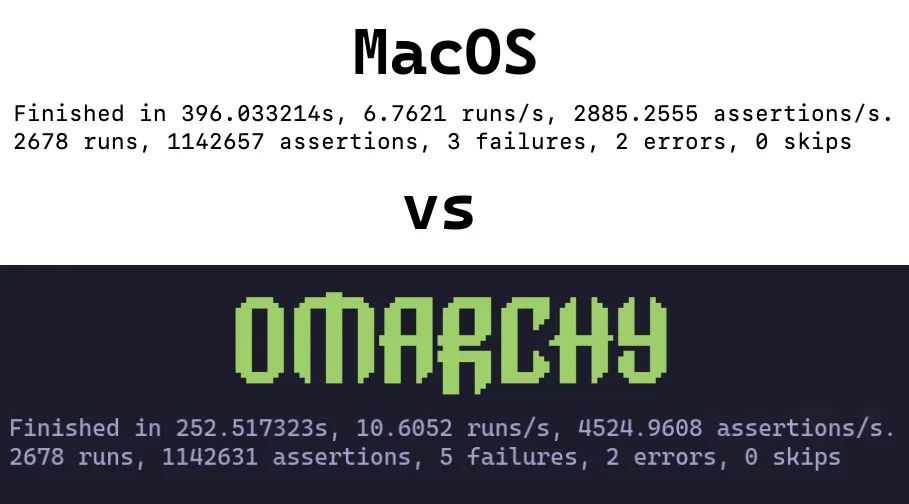
The performance claim is at least measured rather than asserted. The same suite, 2,678 runs and about 1.14 million assertions, finished in 396 seconds on macOS and 252 seconds on Omarchy on a 2019 MacBook Pro. Roughly a 36% gain, on Apple hardware, from swapping the operating system.
The 50-features tour
05 Sep 2026
NetworkChuck went through the whole Omarchy 4.0 manual and pulled out the 50 things he actually uses, in the order you hit them in the first week. 36 minutes. It is the fastest way to see what the distribution ships with, which the docs bury and the screenshots never show.

What it changes about the pitch
The headline is not tiling windows. It is how much is already installed and bound to a key.
- Voxtype. Dictation running entirely on the machine, no cloud and no subscription, with a config file of text replacements for when it mishears a name.
- LocalSend. AirDrop that reaches a phone, a Mac, a Windows box or an Android, by QR code or link. It is the one exception in a default-deny firewall.
- Capture that freezes the screen so you can pick a window after the fact, plus OCR straight to the clipboard, QR codes read off the screen, and screen recording with a webcam bubble at 60fps without OBS.
- Transcode from the menu. Pick a file, choose a smaller MP4 or a GIF, done in place before you share it.
- Disk usage as a TUI you drill into with arrows and delete from with one keystroke.
- A Btrfs snapshot before every update, and you can boot into it.
- Web apps and terminal apps promoted to real apps. Any URL, and any TUI, gets a launcher entry and a hotkey of its own.
- Sudo with a fingerprint, and an SSH session that survives the Wi-Fi dropping and the lid closing.
- Aether. Point it at one wallpaper and it generates a theme across the shell and your apps.
- Restart hardware instead of rebooting. Wi-Fi, Bluetooth, audio and the trackpad each restart on their own.
Then the part that is genuinely new. Omarchy ships the agent harnesses preinstalled, Claude, Codex, Copilot, Gemini and Grok, and carries its own skills for them, so you set a default agent and it configures the operating system for you. In the video he asks Claude for a theme in plain language and gets one applied across the shell and the apps. He then points a local Qwen model at it on a laptop with no dedicated GPU, builds a plugin, and publishes it to the marketplace.
Bindings the manual buries
| Hotkey | Function |
|---|---|
Super + Ctrl + Return |
Herdr, the default over tmux now. See Herdr |
Super + Ctrl + Shift + A |
Open the default AI harness |
Super + Ctrl + O |
The toggle menu: stay awake, night light, idle lock |
Super + Ctrl + Space |
Change the desktop background |
Super + Shift + Backspace |
Fill the gaps and drop the borders |
Super + Alt + G |
Ungroup a tab group |
Super + Ctrl + Arrow |
Move between tabs inside a group |
Super + Shift + D |
lazydocker |
Super + Shift + G |
Signal |
Super + Shift + Y / Super + Shift + X |
The YouTube and X web apps, preinstalled |
Super + Shift + Alt + M |
cliamp, Winamp for the shell |
Super + Alt + [ / ] |
Resize the webcam bubble while recording |
Caps Lock + M, then a letter |
Emoji. M then S for smile, M then 1 for 100 |
The macOS answer
This is the thing worth writing down. Most of what I like about my Mac is not macOS. It is a stack of paid third-party apps I assembled myself, one at a time, over years. Omarchy ships that stack as the default and binds it to keys.
| What I run on macOS | What Omarchy ships |
|---|---|
| Alfred | Super + Space, one menu for apps, settings, installs and capture, with clipboard history that holds images |
| superwhisper | Voxtype, fully local, Super + Ctrl + X |
| AirDrop | LocalSend, Super + Ctrl + S, and it reaches Windows and Android too |
| CleanShot X | Freeze-and-select capture, OCR, QR read, 60fps recording with a webcam bubble |
| Rectangle | The compositor. Windows never overlap in the first place |
| Handbrake | Transcode from the menu |
| DaisyDisk | The disk usage TUI |
| Time Machine | A Btrfs snapshot before every update, bootable |
| Bartender | Super + Shift + Space |
| Amphetamine | The toggle menu |
| f.lux | Super + Ctrl + N |
| Hazel | Nothing ships |
| Trickster | Nothing ships |
The 2 gaps at the bottom are real and I should not paper over them. Hazel's whole value is a rule editor a human can hold in their head: watch this folder, match this pattern, rename, move, tag. Omarchy has no equivalent app.
What it has instead is a shell, a cron, and an agent already wired into the OS with permission to write both. So the Hazel job becomes "tell the agent what you want watched", and the output is a script you can read and a plugin you can publish rather than a rule buried in someone's preference pane. That is more work the first time and considerably more power afterwards.
Which is the actual argument. Omarchy is not competing with macOS on polish. It is betting that once an agent can read and rewrite the whole system, a machine made of text files beats a machine made of preference panes. For anyone even slightly technical, that increasingly looks like where this ends up.
Pros and cons against my current setup
The comparison is against the Mac Studio running Sequoia, not against nothing.
What Omarchy would be better at
- Speed on old hardware. The Mini is idle. This is the best use it will get.
- Configuration as text. Every setting is a file you can read, diff, copy to the next machine and put in version control. That suits the way I already work far better than System Settings panels do.
- One update command. Update > Omarchy updates the system and every package, taking a snapshot first. No per-app updaters.
- Monitor switching may actually improve. DDC over
ddcutilon Linux is more reliable than the BetterDisplay path I fought with on the Dell. The current design needs the Mini to run macOS and BetterDisplay, so Linux breaks it, but it may break it in the direction of something simpler. - My own stack is already portable. Python, SQLite, CLI tools and Claude Code all run natively. That is most of what I actually build with.
What I would lose
- No native Teams client. Microsoft retired the Linux desktop app in December 2022. It is the browser PWA only, which now has near parity but is still a browser tab for the platform I live in all day.
- The macOS-only apps have no equivalents. BetterDisplay, Fantastical, superwhisper, the Rogue Amoeba audio tooling. Each would need a different answer or no answer.
- The studio chain gets complicated. The ATEM control I wrote is Python over UDP, so that part travels. The Cam Link is UVC and should enumerate. But the whole capture path is tuned on macOS and re-proving it on Linux is a project, not an afternoon.
- The Mini currently hosts a 932 GB SMB share that is 99% full and mounted on the Studio. Wiping the Mini kills that share. Move the data first, and decide where it lives afterwards.
- Tiling is a real adjustment. Windows never overlap and you stop dragging them. The manual asks for two weeks before judging, which sounds about right.
Where it lands
As a second machine to learn Linux on, this is close to ideal: the Mini is spare, the hardware support is handled if it is Intel, and the opinionated defaults mean I would spend the time learning the model rather than choosing a status bar. As a replacement for the Studio, no. The Teams and studio-chain dependencies are not worth unpicking.
How I would test it
- Confirm the Mini's model first. Apple menu > About This Mac, or
system_profiler SPHardwareDataType. Intel or Apple Silicon changes everything. - Move the Public Folder share off it and confirm the Studio still finds the data.
- Write the ISO with balenaEtcher and have a wired keyboard ready.
- Install without encryption for the first pass, so a Bluetooth keyboard is not a blocker while testing.
- Live in it for two weeks with
Super + Kopen, then decide.
Further reading